
Stores move things around, and no lookup is perfect. When a suggestion is off, fixing it is quick — and your correction sticks.
Correct an aisle
- Tap the item to open its details.
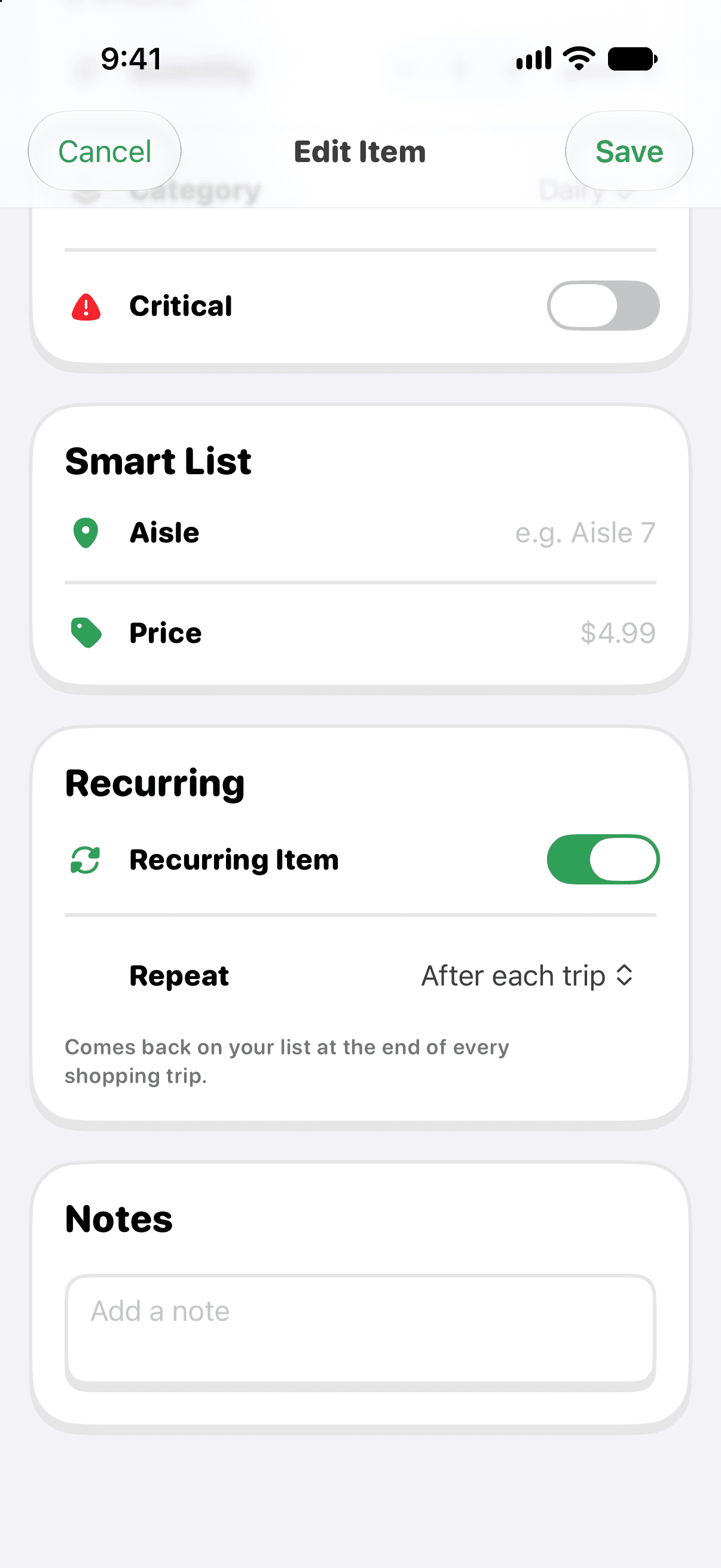
- Give the suggested aisle a thumbs-down and type the right aisle when Pepperjack asks — or tap the pencil and edit the Aisle field directly.
- The item moves to the right section immediately, for everyone on the list.
An aisle you set yourself is treated as the truth for that item from then on — background lookups never overwrite it. Your report also tells Pepperjack to re-check that store's data.
Report a wrong price
If the price looks wrong, it's usually matching a different product than the one you buy. Open the item's details and give the price a thumbs-down — enough reports make Pepperjack re-check the price at that store.
When lookups come back empty
Occasionally an item can't be found at your store — very new products, local brands, or items the store's own site doesn't list. Set the aisle yourself from the item's editor, and Pepperjack will keep using it.