
Pepperjack is ready in about a minute. Signing in takes one tap with Apple or your phone number — there's no password to invent and none to remember.
Create a list
- Download Pepperjack from the App Store and open it.
- Sign in with Apple or your phone number — one tap, no password.
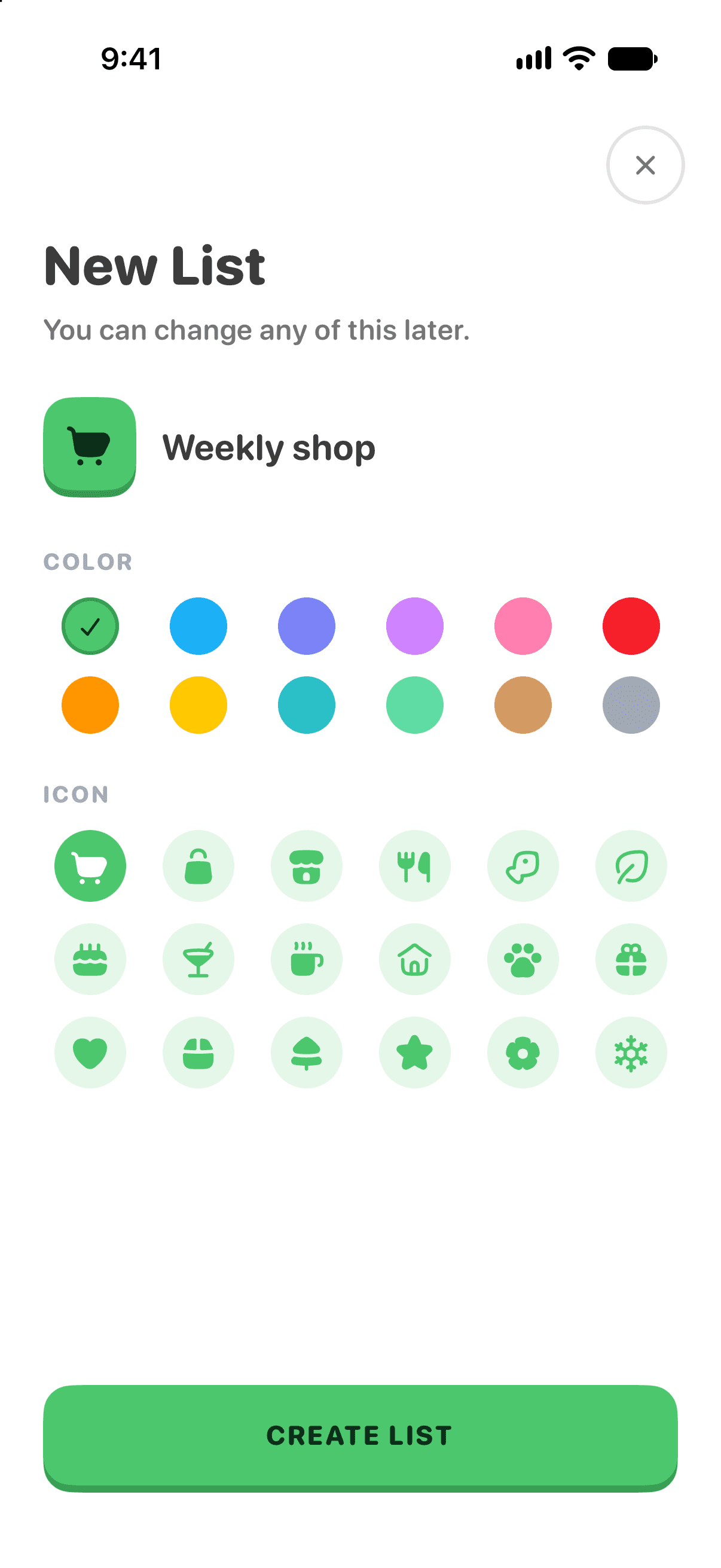
- Tap New List on the Home screen.
- Give the list a name (like Weekly shop or Costco run) and pick a color and icon if you'd like.
- Start typing to add items. Pepperjack tidies up what you type and remembers the things you buy, so favorites are one tap away next time.
A few tips for fast adding
- Add several items at once. Type an item and hit return — the keyboard stays up so you can keep going.
- Quantities and notes. Tap any item to set a quantity ("2"), or tap the pencil to add a note ("the lactose-free one").
- Add from a photo. Point the camera at a handwritten list or the whiteboard on your fridge and Pepperjack reads the items for you. See Add items from a photo.
What's next
- Choose your store so Pepperjack can sort your list into aisle order and check prices.
- Share the list with the people you shop with.
Base and Plus include unlimited lists, with unlimited invited members. New list owners need a plan; eligible Base subscribers get a 14-day trial. Grandfathered accounts retain their existing two-list allowance.