
Remove someone from your list
If you own the list:
- Open the list, then Settings → Members.
- Swipe left on the person and remove them.
They lose access immediately. Items they added stay on the list.
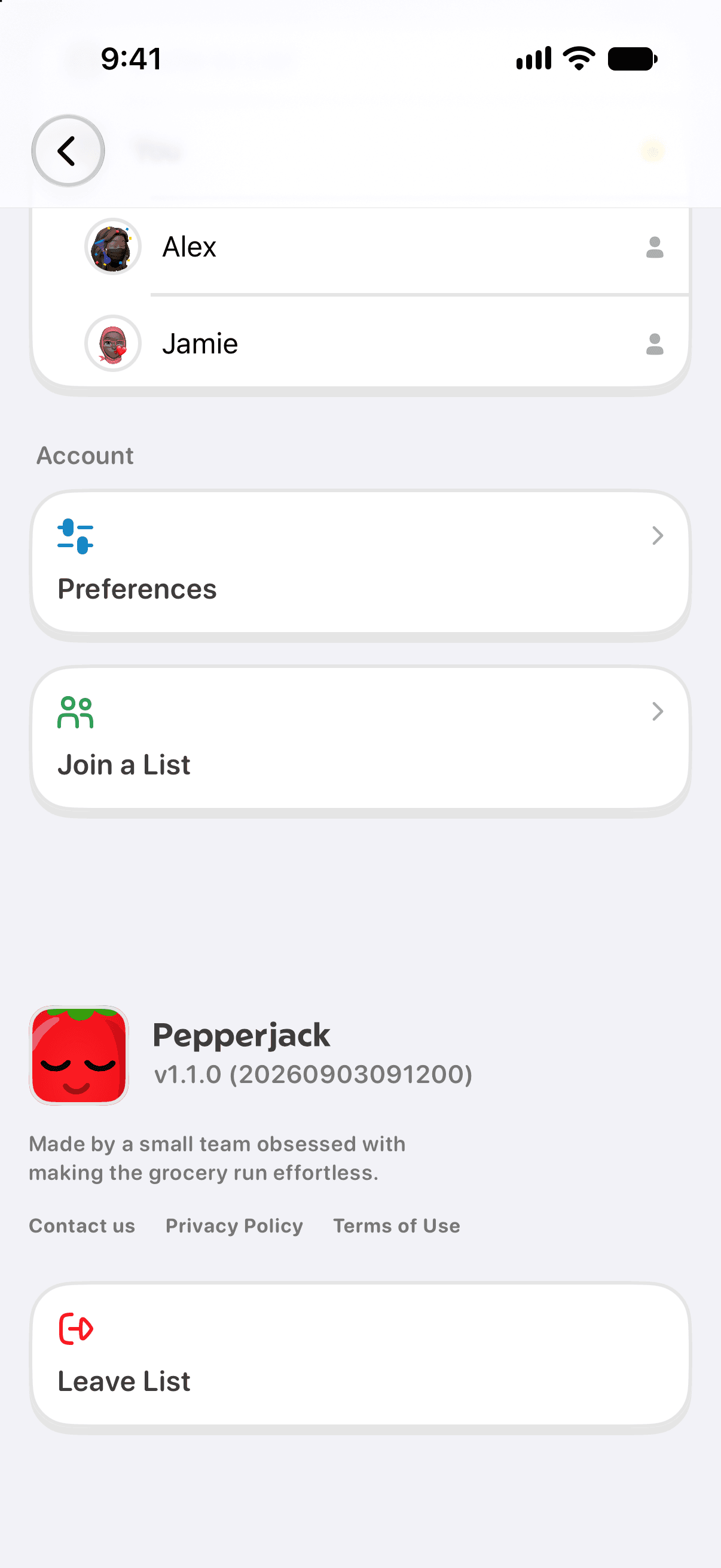
Leave a list someone shared with you
- Open the list, then Settings.
- Choose Leave List and confirm by typing the list's name.
The list disappears from your Home screen. You can rejoin later with a fresh invite link.
Stop sharing entirely
On the Members screen, the owner can turn off Allow new members to join — the invite link stops working, and the people already on the list stay. To end sharing completely, remove members one by one, or delete the list; deleting a shared list removes it for everyone.
A note on invite links
Invite links can be used by anyone who has them while joining is enabled, so share them the way you'd share the list itself. Removing a person does not invalidate the link; if a link has traveled further than you'd like, turn off Allow new members to join, then re-invite the people you want.